Free & Open Source — MIT License

Give your folders
a splash of color

Customize Windows 11 folder icons instantly from the right-click menu — no restart, no background services, just native beauty.
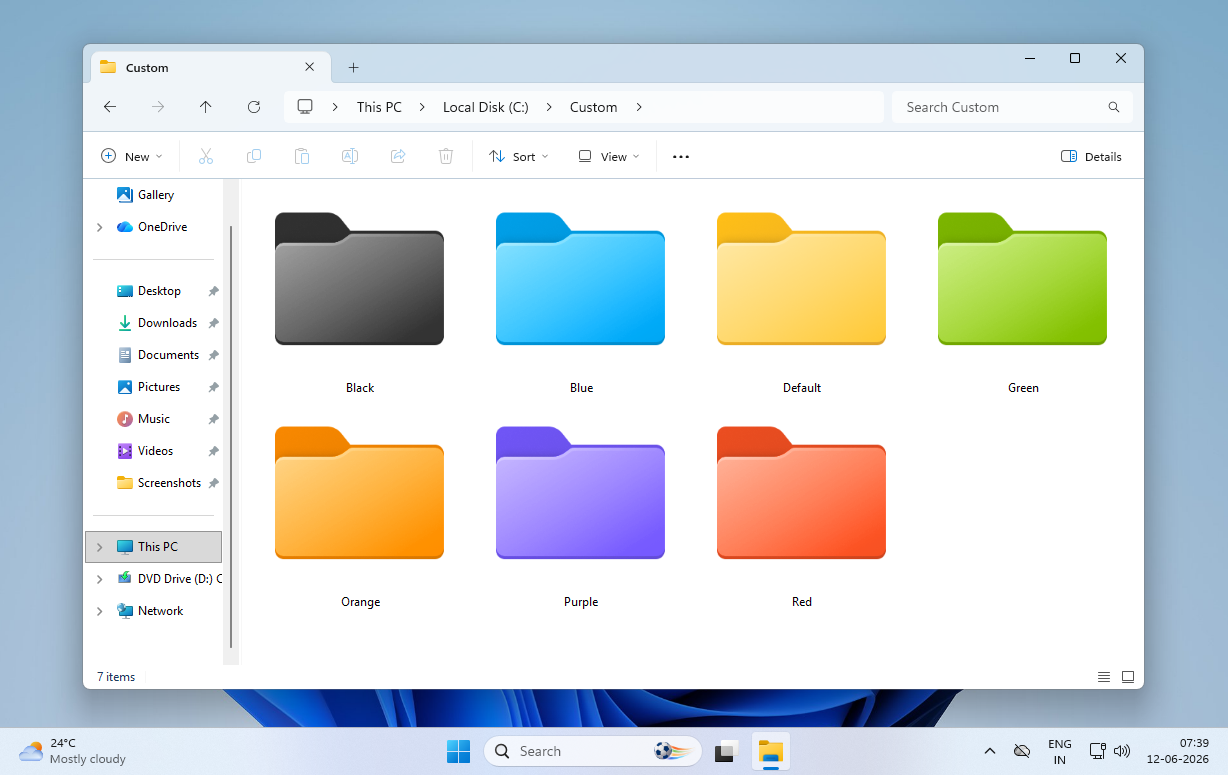
Colored folders displayed in Windows 11 File Explorer
6
Vivid Colors
0
Background Services
60s
Install Time
100%
Offline & Private
Features

Everything you need,
nothing you don't

Lightweight, native, and beautiful — just like Windows 11 itself.

🎨

6 Vivid Colors

Red, Blue, Green, Purple, Orange, and Black — all using the official Windows 11 folder geometry with proper shadows and curves.

🖱️

Right-Click Integration

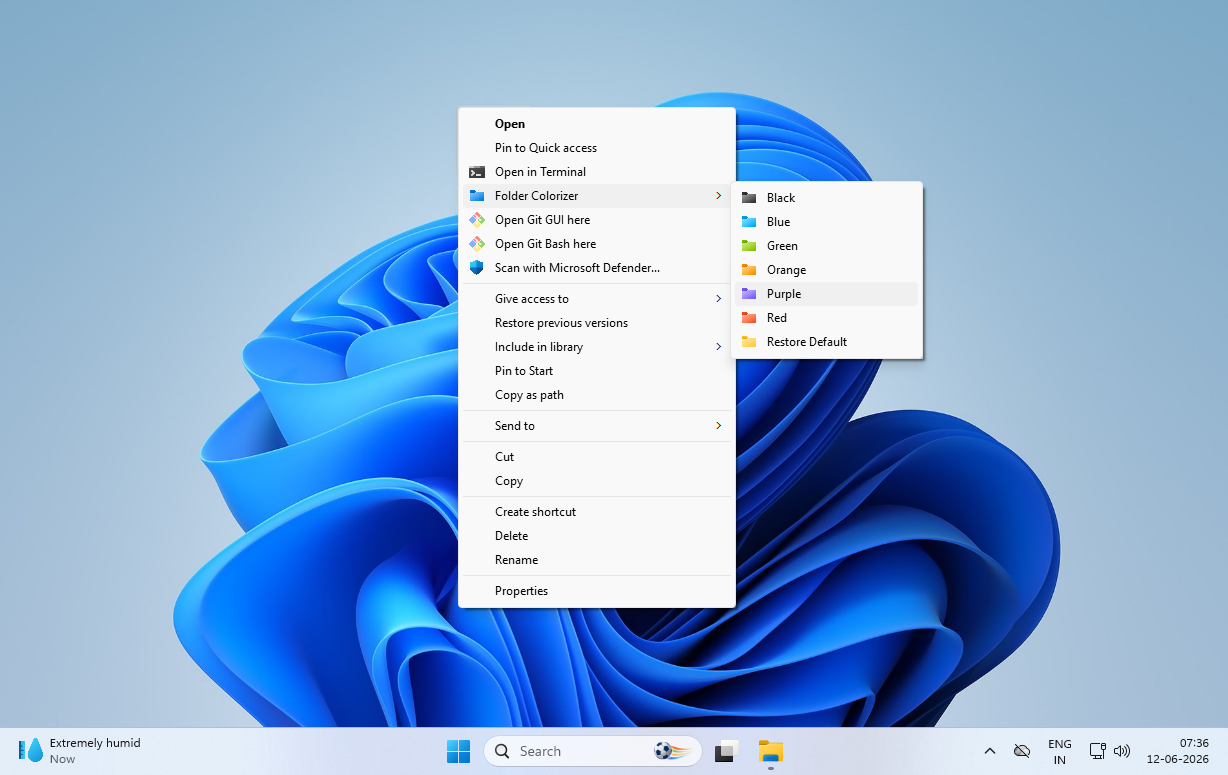
Accessible instantly from the Windows Explorer context menu. Right-click any folder and pick a color — that simple.

Zero Background Services

No daemon, no tray app, no memory footprint. Writes a native desktop.ini — the way Windows intended.

🔄

Instant — No Restart

Changes apply immediately after installation. No system reboots, no Explorer restarts needed.

🔁

One-Click Reset

Restore any folder to its original default icon with a single click from the same context menu.

🧹

Clean Uninstall

Registered in Windows Settings → Apps for a proper, traceless removal. Zero leftovers.

Get Started

Up and running in 60 seconds

Three steps to colorful folders — no admin required.

1

Download

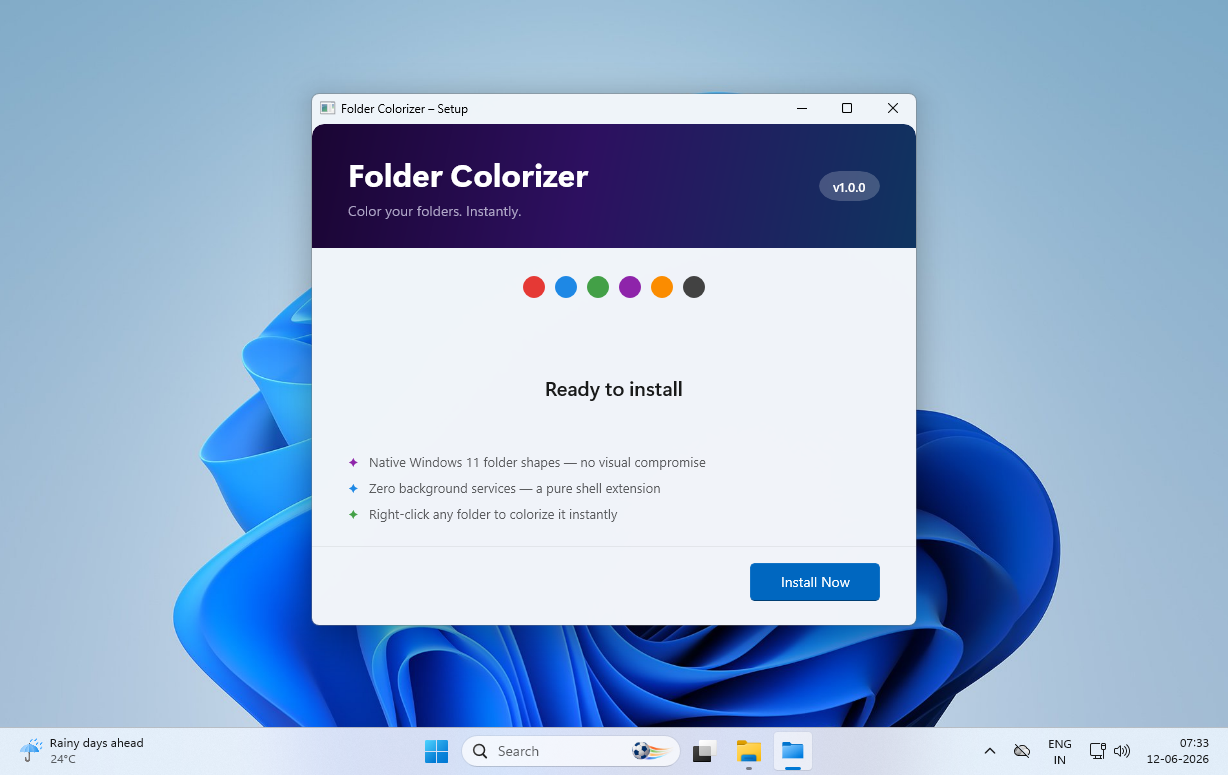
Grab the latest self-contained installer from the GitHub Releases page. No .NET install needed.

2

Install

Run the executable. If SmartScreen appears, click "More info" → "Run anyway". Takes seconds.

3

Colorize

Right-click any folder in File Explorer. Select "Folder Colorizer" and pick your favorite color!

Ready to add some color?

Free, open-source, and built for Windows 11. Start colorizing your folders today.

Download Folder Colorizer